
Database Connectivity
Overview
In your earlier portfolio learning activities, project data lived in an in-memory module. This activity focuses on replacing that approach with a persistent PostgreSQL database connection in your deployed Next.js portfolio project.
Prepare
This page is implementation-first. For conceptual review of relational vs NoSQL systems (including PostgreSQL and MongoDB), read the supplemental page: Database Models (Supplemental).
Activity Instructions
In this activity you will replace the in-memory lib/projects-db.ts module from your portfolio learning activities with a live PostgreSQL database hosted on Vercel. When complete, your portfolio project data will persist across deployments and rebuilds, and your existing API routes will continue to work without structural changes.
Provision a Free Postgres Database on Vercel
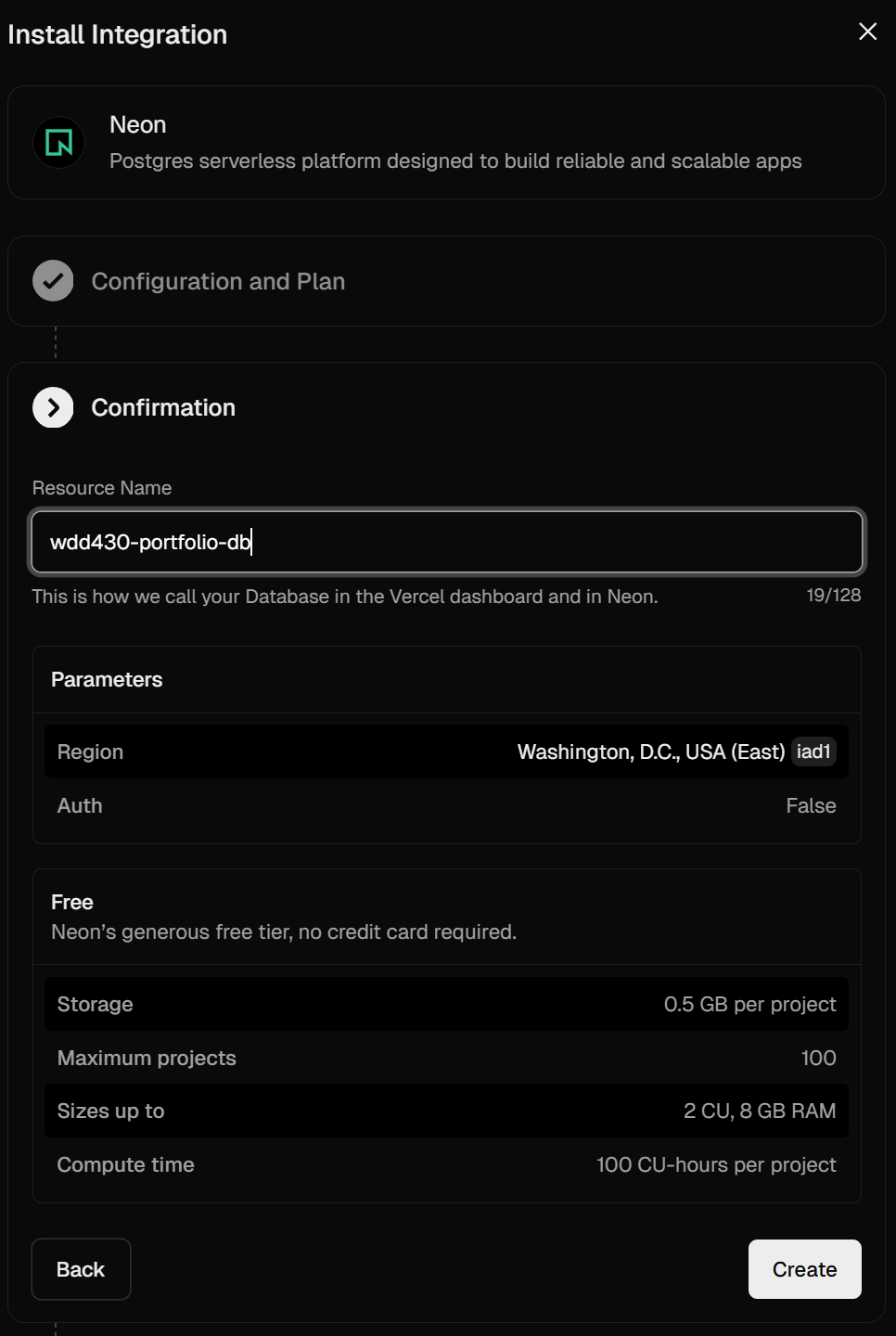
- Open your wdd430-portfolio project on vercel.com.
- In the left sidebar, click Storage, then click Create Database.
- Select Neon (Serverless Postgres) and click Continue.
- On the next screen, choose the recommended database region or the region that is closest to your location.
- Leave the Auth (built-in authentication) unselected, which should be the default.
- Under the installation plan, confirm that you have the free, hobby-tier plan selected.
- Give the Resource Name (database name) a name (for example,
wdd430-portfolio-db). - Click Create. The data provisioning process will run and may take a minute.
- Click Continue to view the Connect a Project settings. You do not need to change any of the default settings.
- Click Connect Project. Vercel will automatically add database environment variables to the project.
Pull Environment Variables for Local Development
Vercel stores database credentials as environment variables. Use the Vercel CLI to copy them to a local .env.local file so your dev server can connect.
- If you have not installed the Vercel CLI, install it globally first:
npm install -g vercel - Then link your local project folder and pull the variables:
vercel link # select your wdd430-portfolio project when prompted vercel env pull .env.local - Confirm that
.env.localnow contains aPOSTGRES_URLvariable before continuing.
Add.env.localto your.gitignorefile if it is not already listed.Committing database credentials to GitHub is a serious security risk.
Install the Vercel Postgres Client
The Vercel Postgres client allows you to interact with your PostgreSQL database directly from your Next.js application.
- Install the Vercel Postgres client:
npm install @vercel/postgres
Create the Projects Table
- On Vercel, go to your project dashboard.
- Click on Storage and then select your database and then Query
Storage → your database → Query - In the query editor, run SQL commands to create a
projectstable that matches theProjectinterface from your portfolio app.
Check Your Understanding (Example)
CREATE TABLE IF NOT EXISTS projects ( id SERIAL PRIMARY KEY, title VARCHAR(255) NOT NULL, description TEXT, type VARCHAR(20) CHECK (type IN ('opensource', 'school')), technologies TEXT[], link VARCHAR(500) ); - Then seed the table with a few rows so you have data to test against.
Check Your Understanding (Example)
INSERT INTO projects (title, description, type, technologies, link) VALUES
    ('My First Open Source Contribution', 'A bug fix contributed to a popular library.',
     'opensource', ARRAY['TypeScript', 'React'], 'https://github.com/example/repo'),
    ('Database Design Final Project',     'An ER diagram and normalized schema for a library system.',
     'school',     ARRAY['PostgreSQL', 'SQL'],   NULL),
    ('Portfolio Site',                    'Personal portfolio built with Next.js and Tailwind.',
     'school',     ARRAY['Next.js', 'TypeScript', 'Tailwind'], NULL);
Replace the In-Memory Module with Database Queries
- Open
lib/projects-db.ts - Import the
sqltagged template literal from the Vercel Postgres client (@vercel/postgres). - Replace the existing in-memory data and functions with live queries to your database using the
sqltagged template literal. The exported interface and function signatures should stay the same, so your existing API routes need no structural changes.
Check Your Understanding (updated lib/projects-db.ts)
// lib/projects-db.ts
import { sql } from '@vercel/postgres';

export interface Project {
  id: number;
  title: string;
  description: string;
  type: 'opensource' | 'school';
  technologies: string[];
  link?: string;
}

export async function getProjects(type?: string | null): Promise<Project[]> {
  if (type) {
    const { rows } = await sql<Project>`
      SELECT * FROM projects WHERE type = ${type} ORDER BY id
    `;
    return rows;
  }
  const { rows } = await sql<Project>`SELECT * FROM projects ORDER BY id`;
  return rows;
}

export async function getProjectById(id: number): Promise<Project | null> {
  const { rows } = await sql<Project>`
    SELECT * FROM projects WHERE id = ${id}
  `;
  return rows[0] ?? null;
}
The sql tagged template literal automatically parametrizes values like ${type} and ${id}, protecting against SQL injection. Never build SQL strings using string interpolation or concatenation with user-supplied values.
Update Route Handlers to Await the New Async Functions
The functions in projects-db.ts are now async, so every route handler that calls them must await the result. Update both API routes:
app/api/projects/route.ts
import { NextRequest, NextResponse } from 'next/server';
import { getProjects } from '@/lib/projects-db';

export async function GET(request: NextRequest) {
  const { searchParams } = new URL(request.url);
  const type = searchParams.get('type');
  const projects = await getProjects(type);
  return NextResponse.json(projects);
}
app/api/projects/[id]/route.ts
import { NextResponse } from 'next/server';
import { getProjectById } from '@/lib/projects-db';

export async function GET(
  _request: Request,
  { params }: { params: { id: string } }
) {
  const id = Number(params.id);
  if (Number.isNaN(id)) {
    return NextResponse.json({ error: 'Invalid id' }, { status: 400 });
  }
  const project = await getProjectById(id);
  if (!project) {
    return NextResponse.json({ error: 'Not found' }, { status: 404 });
  }
  return NextResponse.json(project);
}
Test Locally, Then Deploy
- Start your local dev server (
npm run dev) and visit/api/projectsin the browser. You should see your seeded rows as JSON. - Test the filtered and single-item endpoints:
/api/projects?type=school/api/projects/1/api/projects/abc— should return a 400 error
- Confirm that
/projects,/projects/school, and/projects/opensourcerender correctly in the browser. - Commit your changes and push to GitHub. Vercel will redeploy automatically. Test the same routes on your live production URL to confirm the database connection works in production.