
Data to Decisions
This activity will help you understand the relationship of data to information. It will also help you understand tabular data and spreadsheets. This will prepare you to start designing databases to store data that ultimately will be used to answer business questions, keep customer data, drive web sites or a million other uses.
Data to Information
A look at how raw data becomes useful information.
Thought Question: What comes to mind when you see these shapes and letters?
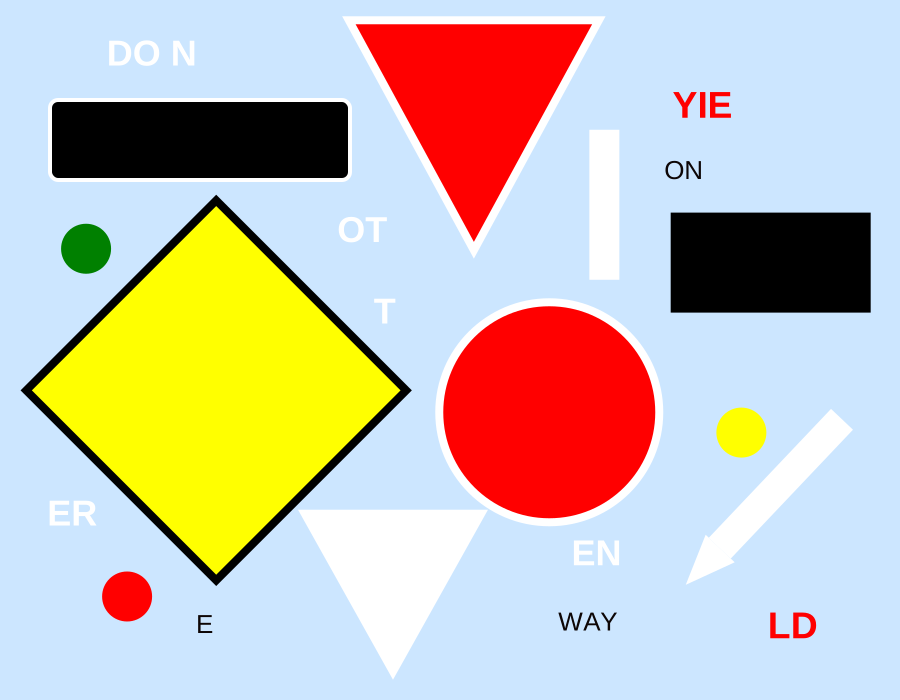
After you have given it some thought click the spinner to continue the discussion
Did you think of road signs? You are right. Here are the same shapes and letters but organized logically into something much more immediately recognizable.
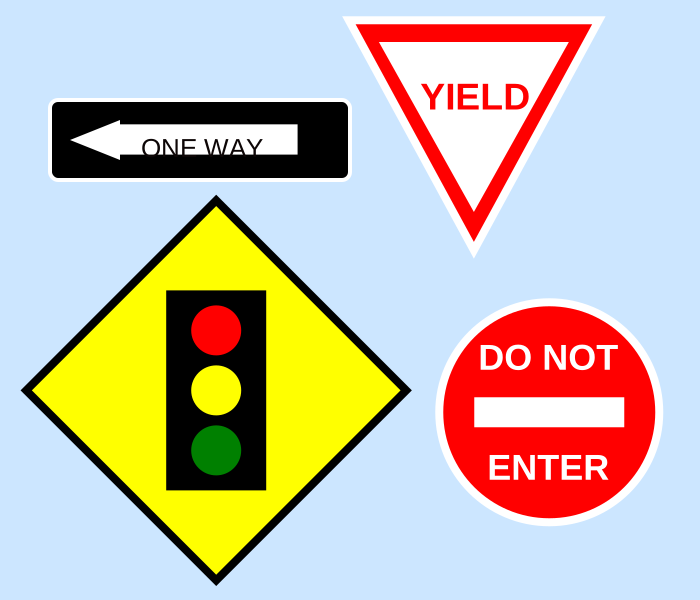
In your reading this week you will learned about data, information, knowledge and decisions. The first image you saw could represent raw data that doesn't really have a context yet. Once that data has context and you see it as road signs it becomes useful information for you. The purpose of databases is to take data and give it context in order for it to become useful information. Once there is good, useful information from your database, people in the business can use that information combined with the experiences and education they possess to make decisions for their business to help it succeed.
If I was not from the United States, would I recognize those road signs? Maybe not. Same with information. People without a background in that information may not be as equipped to use the information for knowledge.
Also, even if you do recognize the road signs just fine and you have a good knowledge of what they mean, does that mean people always make the right decisions with that knowledge? No they don't, that's why we have car wrecks. So even with good knowledge, businesses don't always make the best decisions.
But the idea is to take lots of good data and put it into a database where we can take the data and get good information from it. Then knowledge and good decisions can follow.
Spreadsheets and Tabular Data
To help you understand tabular data and the difference between spreadsheets and databases complete the following tasks.
-
Tabular Data
A look at how data can be stored in tabular format and an introductory look at how data is stored in a database table.
This week you gathered and stored data. There are lots of different ways the data could be recorded. Let's look at some examples of how some students turned in their data.
- Some students made types of grids
My Camera Roll Column1 Selfie Group/Others Landscape / cityscape Interior / Still-Life Documentation Screenshot Home xxx xxx Work Social Setting x x x School Car Other xxxxxxxxxxx Home Work Social Setting Selfie Selfie 2 Selfie Group Group Group Landscape/ Cityscape Landscape/ Cityscape Landscape/ Cityscape Interior/ Still-life Interior/ Still-life Interior/ Still-life Documentation 1 Documentation Documentation Screenshot Screenshot Screenshot 1 Car Other Outdoors School Selfie 2 Selfie Selfie 2 Selfie 2 Group Group Group 5 Group Landscape/ Cityscape Landscape/ Cityscape Landscape/ Cityscape 1 Landscape/ Cityscape Interior/ Still-life 1 Interior/ Still-life Interior/ Still-life Interior/ Still-life Documentation Documentation Documentation Documentation Screenshot 2 Screenshot 1 Screenshot Screenshot - Some students stored each image as one row and each column represented related data about those images. This is closer to how you'd see data in a database.
Location Type of Photo Home Others Outdoors Cityscape Outdoors Selfie Outdoors Others Outdoors Group Outdoors Group Outdoors Group Outdoors Group Outdoors Group Outdoors Group Car Group Other Screenshot Home Group Outdoors Others Outdoors Landscape Outdoors Group Outdoors Others Home Others Other Screenshot Other Screenshot - This student numbered each photo in addition to the two categories.
Photos Location Type 1 Other Screenshot 2 Other Screenshot 3 Other Screenshot 4 Home Documentation 5 Home Documentation 6 Home Documentation 7 Home Documentation 8 Home Still-life 9 Home Selfie 10 Home Selfie 11 Home Selfie 12 Home Selfie 13 Other Screenshot 14 Outdoors Landscape 15 Home Selfie 16 Home Drawing (still-life?) 17 Home Drawing (still-life?) 18 Home Still-life 19 Home Still-life 20 Home Still-life - This student added many more columns for each of his images. Notice how he has related who took the images and what activity it is related to. This was not necessary, neither was the color or pattern. But if we had combined the entire classes information together there would have been a column somewhere in the data letting us know which images belong to what student.
Activity Color Location Symbol Symbol_Var Connected Person My Camera Roll Red Home Lines Documentation Yes Devin My Camera Roll Red Home Lines Documentation Yes Devin My Camera Roll Brown Other Vertical Half Screenshot No Devin My Camera Roll Red Home Double circle Group/Others No Devin My Camera Roll Blue School Vertical Half Screenshot No Devin My Camera Roll Red Home Lines Documentation No Devin My Camera Roll Orange Social setting Vertical Half Screenshot No Devin My Camera Roll Red Home Vertical Half Screenshot No Devin My Camera Roll Red Home Vertical Half Screenshot No Devin My Camera Roll Red Home Filled Interior/Still-life No Devin My Camera Roll Red Home Vertical Half Screenshot Yes Devin My Camera Roll Red Home Vertical Half Screenshot Yes Devin My Camera Roll Red Home Vertical Half Screenshot Yes Devin My Camera Roll Red Home Filled Interior/Still-life No Devin My Camera Roll Red Home Filled Interior/Still-life No Devin My Camera Roll Orange Social setting Lines Documentation No Devin My Camera Roll Red Home Filled Interior/Still-life No Devin My Camera Roll Brown Other Vertical Half Screenshot No Devin My Camera Roll Brown Other Vertical Half Screenshot No Devin My Camera Roll Brown Other Vertical Half Screenshot No Devin
- Some students made types of grids
-
Database Structure
In databases each group of data Is referred to as a table. One row of information as one entity (also called a record). Each column will represent one attribute (or field) of that entity. Sometimes you will see the first row as column headers that will represent what attribute is in that column.
So, in our images table we would have each image be one row. And each column would represent either the type of image it is or the location the image was taken. So, the entity is image and attributes are type and location.
We saw examples of how one person's data might look
What if we were to combine the whole classes' data? You can imagine that the image table especially would get very large'each student in the class with all their images. How do I keep track of what images belong to what student? Do I repeat their name again and again with each image or put their name as a subtitle before each set of 20?
lname location type Smith Home Group Smith Home Selfie Smith Home Selfie Smith School Documentation Smith School Landscape/Cityscape Smith School Landscape/Cityscape Smith School Landscape/Cityscape Taylor Social Setting Group Taylor Social Setting Selfie Remember this because later when we talk about primary and foreign keys, this problem will be solved. It would basically be assigning a code or number to each student and then using that same code or number to associate each of the 20 images. So, if I was assigned the number 1, I'd put a 1 next to each of my 20 images. More on primary and foreign keys in later weeks.
-
Data Redundancy
Let's look at Data Redundancy. If I had 20 images that I was recording for one person and I placed their name before each image I would be repeating their name again and again. What if the images for all the students got sorted (or ordered) by a different column like location, and now the same names weren't all in one place? If a person's name changed when they got married or we realized, we had it misspelled it when we put it in the database; we'd have to go into the data and find everywhere their name was referenced and make that change. This is not ideal and is definitely not efficient. This is what's referred to as Data Redundancy. We want to eliminate data redundancy in our databases. It would be easier to keep track of a number that referred to the student. Here the #1 refers to the student with the last name Smith and the #2 refers to the student with the last name of Taylor.
id location type 1 Home Group 1 Home Selfie 1 Home Selfie 1 School Documentation 1 School Landscape/Cityscape 1 School Landscape/Cityscape 1 School Landscape/Cityscape 2 Social Setting Group 2 Social Setting Selfie Then that #1 would refer back to only one location where the name is stored and one place where their name would have to be edited.
id lname fname gender major 1 Smith Sue F Business Analytics 2 Taylor Tom M Data Science -
Data Integrity
Let's look at Data Integrity. In the images table, we could simply start typing in another image (see row 11) even if there was not a person it related to.
A B C 1 id location type 2 1 Home Group 3 1 Home Selfie 4 1 Home Selfie 5 1 School Documentation 6 1 School Landscape/Cityscape 7 1 School Landscape/Cityscape 8 1 School Landscape/Cityscape 9 2 Social Setting Group 1 2 Social Setting Selfie 11 Home Group This is possible in a spreadsheet program. But for clean, consistent data in a database, the data entry person should not just be able to add whatever data they want. It needs to make sense. In our case each image really should go with a person. This is Data Integrity. In a database you can't just add an image unless it was associated with a person.
-
Data Consistency
Let's look at Data Consistency. In the column where the last name is stored, I can actually go in there and add a totally different type of data like a date.
id lname fname gender major 1 4/20/20 Sue F Business Analytics 2 Taylor Tom M Data Science This doesn't make a lot of sense since that is supposed to be a last name. But I can do it. In a database you would not be able to do this. You would be restricted to a certain type of data. If it was expecting a last name it would not let you put a number or a date there. This keeps your data consistent, therefore databases enforce Data Consistency.
-
Sorting and Filters
While we are looking at data in Excel, let's cover two more vocabulary words that might make sense to you, especially if you are an Excel user. In Excel you can sort your data by columns. For example, say I want to list the people alphabetically by last name. I can sort them that way. When we get to sorts on our database, we will use a keyword called ORDER BY and this will allow us to sort or order our data.
id location type 1 Home Group 1 Home Selfie 1 Home Selfie 1 School Documentation 1 School Landscape/Cityscape 1 School Landscape/Cityscape 1 School Landscape/Cityscape 2 Social Setting Group 2 Social Setting Selfie Another feature Excel users might be familiar with, is the filter tool. What if I only want to see selfie images and no other image. I can filter my data to only include (or show) the images that are selfies and exclude (or hide) all the other types of images. This is filtering. When we get to filtering in our database, we will use a keyword called WHERE with a condition. Like, 'Show all the images WHERE the type of image is selfie'. Then it will filter it down to only those images. More on sorting and filtering in later weeks.
-
Database vs. Spreadsheets
Watch the video below to understand why we can't use spreadsheets (Excel) for all data.
(07:05 mins, "Database vs Spreadsheet" Transcript)
Submission
Nothing to submit yet, continue to the next activity W01 Setup: MySQL Workbench.
Useful Links:
- Go to: Week Index • Course Home • Canvas