
W04 Learning Activity: Updating Data
Overview
In previous activities you learned how to handle form submissions to insert data. In this activity, you will learn how to update existing data in your application.
Preparation Material
Creating a form to update existing data is very similar to the form for inserting data. The key difference is that the form fields are pre-populated with the current data, allowing users to make changes as needed. Then, when sending the data to the database, you use an update operation with the ID of the record, instead of an insert.
In this activity you will create a form to update existing organizations.
This update process will flow through each of the following steps:
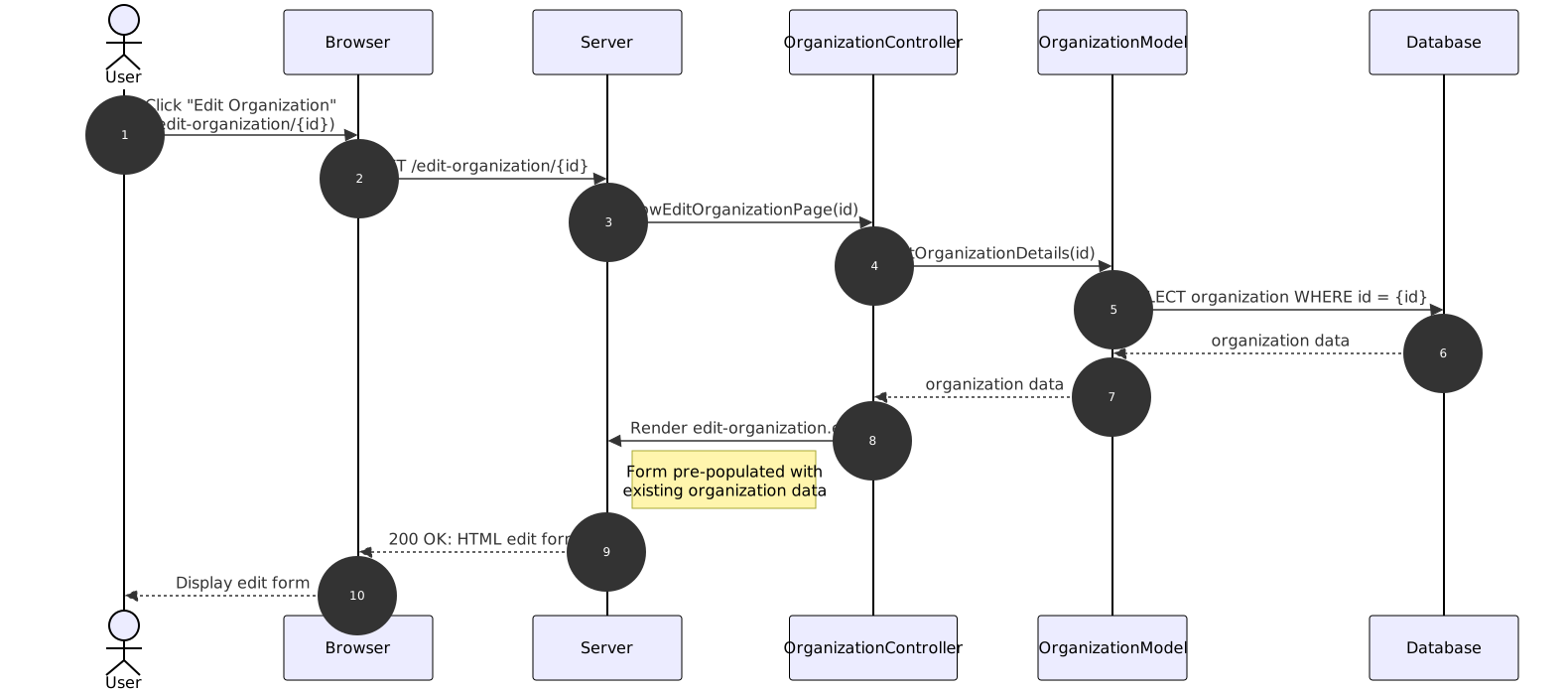
Part 1: Display the edit form with existing data pre-populated
- On the organization details page, the user clicks a link to edit the organization, which contains the link
/edit-organization/{id}where{id}is the id of the organization to edit (for example,/edit-organization/123). - The server processes the
/edit-organizationroute which calls theshowEditOrganizationFormcontroller. - The
showEditOrganizationFormcontroller calls a model function to get the organization data by ID. (You will use your existinggetOrganizationDetailsfunction for this call). - The existing
getOrganizationDetailsfunction retrieves the organization data from the database. - The
showEditOrganizationFormcontroller receives the organization data from the model function and passes it to the viewedit-organization.ejs. - The view
edit-organization.ejsgenerates an HTML form pre-populated with the existing organization data.
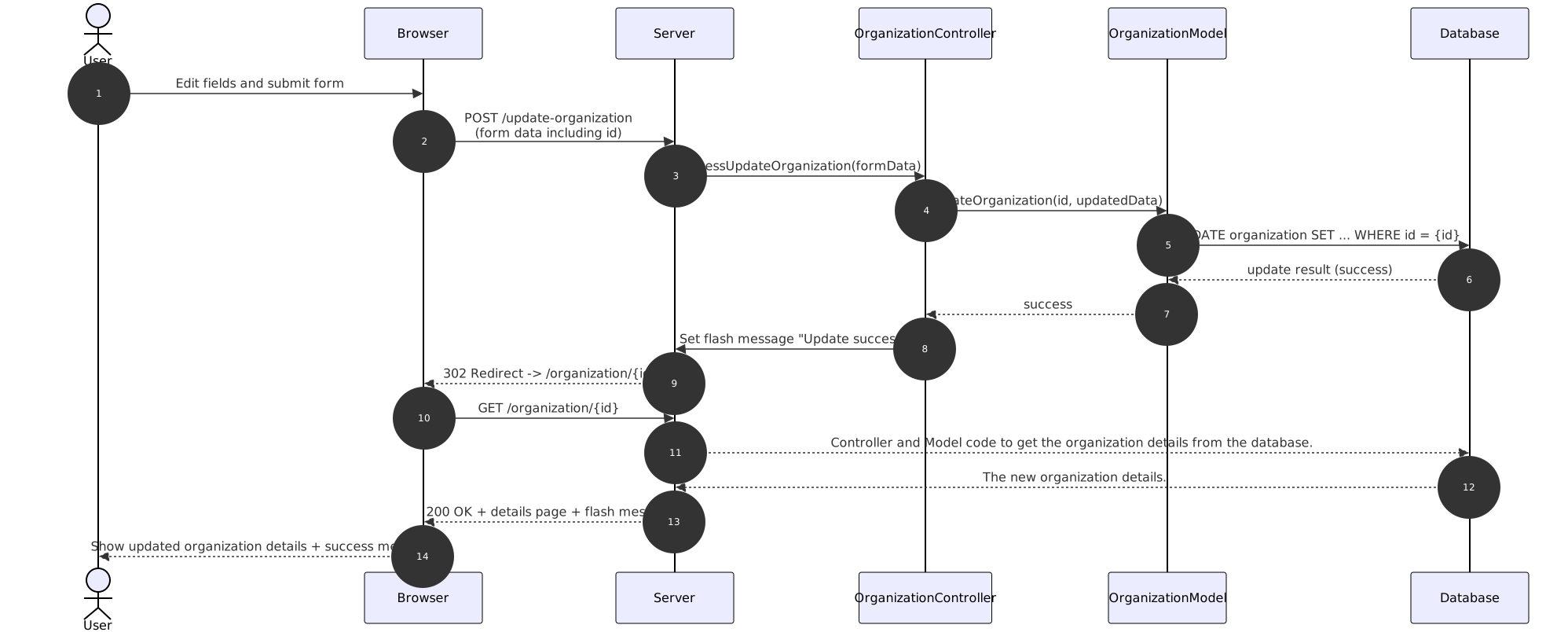
Part 2: Process the edit form submission and update the database
- The user makes changes to the organization data in the
edit-organizationform and submits it. - The form submission sends a POST request to the route
/edit-organization/{id}. - The server processes the
/edit-organizationroute which calls theprocessEditOrganizationcontroller. - The
processEditOrganizationcontroller extracts the updated organization data from the form submission and calls a model function to update the organization data in the database. - The
updateOrganizationfunction executes an SQL UPDATE statement to modify the existing organization record in the database based on the provided ID and updated data. - After the update is complete, the
processEditOrganizationcontroller redirects the user to the organization details page with a success flash message. - The browser requests the organization details page, which gets the information from the database and displays it along with the flash message.
The following figures depicts this process visually. The first diagram shows part 1 of the process, which displays the edit form with the existing data prepopulated.
The second diagram shows part 2 of the process, which processes the form submission and updates the database.
Activity Instructions
Complete the following steps to create the edit organization view.
You can approach this task in a top-down manner, starting from what the user sees and work your way to the database. Or you could start with the database layer and work your back up, building and testing each function as you go.
This activity will follow the top-down approach, beginning with the client's request.
Add an Edit Link to the Organization Details page
In this step, you will add a link to the organization details page that allows the user to navigate to the edit organization view.
- Open your existing
src/views/organization.ejsview file. - Add an "Edit" link that links to the edit organization view. The link destination should be
/edit-organization/{id}, where{id}is the ID of the organization to be updated (for example,/edit-organization/123).
Sample Code (Click to expand)
<p><a href="/edit-organization/<%= organizationDetails.organization_id %>">Edit Organization</a></p>Add the route handler and controller for the Edit Organization form
In this step, you will create the route and controller function that displays the edit organization form.
- In your
src/routes.jsfile, add a new GET route for/edit-organization/:idthat calls a new controller function namedshowEditOrganizationForm.Sample Code (Click to expand)
// Route to display the edit organization form router.get('/edit-organization/:id', showEditOrganizationForm); - In your
src/controllers/organizations.jsfile, create theshowEditOrganizationFormfunction that retrieves the organization details by ID from the organization model (similar to the organization details controller) and passes that information to theedit-organization.ejsview.Sample Code (Click to expand)
const showEditOrganizationForm = async (req, res) => { const organizationId = req.params.id; const organizationDetails = await getOrganizationDetails(organizationId); const title = 'Edit Organization'; res.render('edit-organization', { title, organizationDetails }); }; - Add the
showEditOrganizationFormfunction to your list of exports. - Return to the
src/routes.jsfile and import theshowEditOrganizationFormfunction.
Create the Edit Organization View
In this step, you will create the form for editing the organization.
- Create a new file named
edit-organization.ejsin thesrc/views/folder. - As a starting point, copy and paste the content of your
new-organization.ejsview into the new file. - Change the form action from
/new-organizationto be a new route:/edit-organization/{id}where id is the ID of the organization being updated. - Pre-populate the form fields with the existing organization data using EJS syntax.
- For the organization name input field, set the
valueattribute to<%= organizationDetails.name %> - For the organization description textarea, place
<%= organizationDetails.description %>between the opening and closing<textarea>tags. - For the contact email input field, set the
valueattribute to<%= organizationDetails.contact_email %>. - Finally, add a new input field for the logo filename, and set the
valueattribute to<%= organizationDetails.logo_filename %>.
- For the organization name input field, set the
- Change the text of the submit button to "Update Organization".
Sample Code (Click to expand)
Your complete form may look something like this:
<%- include('partials/header') %>
<main>
    <h1><%= title %></h1>

 <form action="/edit-organization/<%= organizationDetails.organization_id %>" method="POST">
    <div class="form-group">
      <label for="name">Organization Name</label>
      <input
        type="text"
        id="name"
        name="name"
        value="<%= organizationDetails.name %>"
        maxlength="150"
        required
      />
    </div>

    <div class="form-group">
      <label for="description">Description</label>
      <textarea
        id="description"
        name="description"
        maxlength="500"
        required
      ><%= organizationDetails.description %></textarea>
    </div>

    <div class="form-group">
      <label for="contactEmail">Contact Email</label>
      <input
        type="email"
        id="contactEmail"
        name="contactEmail"
        maxlength="255"
        required
        value="<%= organizationDetails.contact_email %>"
      />
    </div>

    <div class="form-group">
      <label for="logoFilename">Logo Filename</label>
      <input
        type="text"
        id="logoFilename"
        name="logoFilename"
        maxlength="255"
        required
        value="<%= organizationDetails.logo_filename %>"
      />
    </div>


    <button type="submit">Update Organization</button>
  </form>

</main>
<%- include('partials/footer') %>
Stop here and test that your form is displaying correctly before moving on.
You should be able to visit the organization details page, click on the edit link, and see a form that is pre-populated with the organization's current details.
Add the route handler and controller to process the Edit Organization form submission
In this step, you will create the route and controller function that processes the edit organization form submission.
- In your
src/routes.jsfile, add a new POST route for/edit-organization/:idthat calls a new controller function namedprocessEditOrganizationForm.Sample Code (Click to expand)
// Route to handle the edit organization form submission router.post('/edit-organization/:id', processEditOrganizationForm); - In your
src/controllers/organizations.jsfile, create theprocessEditOrganizationFormfunction. It should do the following:- Get the organization ID from
req.params.id. - Get the rest of the data (name, description, contactEmail, logoFilename) from
req.body. - Call a new model function named
updateOrganization(which you will create in the next step) to update the organization in the database. - Extract the updated organization data from the form submission using
req.bodyand the organization ID fromreq.params.id. - Call a new model function named
updateOrganization(which you will create in the next step), passing all of the necessary parameters. - After the update is complete, set a success flash message.
- Redirect the user back to the organization details page for that organization id.
Sample Code (Click to expand)
const processEditOrganizationForm = async (req, res) => { const organizationId = req.params.id; const { name, description, contactEmail, logoFilename } = req.body; await updateOrganization(organizationId, name, description, contactEmail, logoFilename); // Set a success flash message req.flash('success', 'Organization updated successfully!'); res.redirect(`/organization/${organizationId}`); }; - Get the organization ID from
- Add the
processEditOrganizationFormfunction to your list of exports. - Return to the
src/routes.jsfile and import theprocessEditOrganizationFormfunction.
Create the updateOrganization model function
In this step, you will create the model function that updates the organization in the database.
- In your
src/models/organizations.jsfile, create a new function namedupdateOrganizationthat takes the following parameters:id, name, description, contactEmail, logoFilename. - Inside the function, create an SQL UPDATE statement that updates the organization record with the provided ID, setting the name, description, contact email, and logo filename to the new values.
- Execute the SQL statement using your database connection.
- Add the
updateOrganizationfunction to your list of exports. - Return to your
src/controllers/organizations.jsfile and import theupdateOrganizationfunction.
Sample Code (Click to expand)
const updateOrganization = async (organizationId, name, description, contactEmail, logoFilename) => {
  const query = `
    UPDATE organization
    SET name = $1, description = $2, contact_email = $3, logo_filename = $4
    WHERE organization_id = $5
    RETURNING organization_id;
  `;

  const queryParams = [name, description, contactEmail, logoFilename, organizationId];
  const result = await db.query(query, queryParams);

  if (result.rows.length === 0) {
    throw new Error('Organization not found');
  }

  if (process.env.ENABLE_SQL_LOGGING === 'true') {
    console.log('Updated organization with ID:', organizationId);
  }

  return result.rows[0].organization_id;
};
Stop here and test that your update functionality is working correctly before moving on.
You should be able to visit the organization details page, click on the edit link, make changes in the form, submit it, and see the updated details reflected on the organization details page along with a success flash message.
Add Validation
In this step, you will add validation to ensure that the data being submitted in the edit organization form is valid before updating the database.
Because the validation rules for editing an organization are the same as for creating a new one, you can reuse the validation logic you implemented earlier.
- In your
src/routes.jsfile, update the POST route for/edit-organization/:idto include the existing validation middleware you created for new organizations.Sample Code (Click to expand)
// Route to handle the edit organization form submission router.post('/edit-organization/:id', organizationValidation, processEditOrganizationForm); - In your
src/controllers/organizations.jsfile, update theprocessEditOrganizationFormfunction to check for validation errors usingvalidationResult(req).- If there are validation errors, redirect back to the
/edit-organization/:idpage. - If there are no validation errors, proceed with updating the organization as before.
Sample Code (Click to expand)
You can add something like the following to your
processEditOrganizationFormfunction:// Check for validation errors const results = validationResult(req); if (!results.isEmpty()) { // Validation failed - loop through errors results.array().forEach((error) => { req.flash('error', error.msg); }); // Redirect back to the edit organization form return res.redirect('/edit-organization/' + req.params.id); } - If there are validation errors, redirect back to the
Next Step
Complete the other Week 04 Learning Activities
After you have completed all the learning activities for this lesson, return to Canvas to submit a quiz.
Other Links:
- Return to: Week Overview | Course Home