
W01 Learning Activity: Express and Routing
Overview
In this assignment, you will change your server.js file, so that instead of sending back a hardcoded message, it will send back static HTML files for different routes.
Course Project
Throughout this course, you will be developing a system similar to JustServe.org. It will have pages and database entries for the following:
- Home Page
- Partner Service Organizations
- Services Projects
- Categories
- Volunteers
In this activity you will create the initial pages for this site.
Activity Instructions
Introduction to Routing
In this activity, you will build a simple 3-page website using Express. You will create and serve static HTML files for the Home, Partner Service Organizations, and Service Projects.
To serve these files, you will create a route for each of them. The route maps a URL pattern to an action, in this case serving of a file. For this example, you will set up routes that match the following:
/– serveshome.html/organizations– servesorganizations.html/projects– servesprojects.html
This will be done in Express using res.sendFile().
In future assignments, you will learn about more advanced routing techniques and use a templating engine. But at this point, your app will send files back directly.
Project Structure
Your project will have two main folders that serve different purposes:
-
public/: Contains static files that browsers can access directly (CSS, images, client-side JavaScript) -
src/views/: Contains HTML files that Express serves through routes
This separation reflects how modern web applications work. Files in public/ are served exactly as they exist on your server—no processing, no security checks, no logic. They are perfect for assets that never change: stylesheets, images, fonts, and client-side JavaScript files. Anyone can request these directly by typing the URL.
Files in src/views/, on the other hand, are served through your application logic. Your Express app decides whether to serve them, can modify them before serving, can apply security checks, and can even generate them dynamically. This gives you complete control over what users see and when they see it.
Directory Structure
At the end of this activity, your directory structure will look as follows:
[project-root]
├── public/
│   ├── css/
│   │   └── main.css
│   └── images/
│       └── cse340-service-network.png
│       └── brightfuture-logo.png
│       └── greenharvest-logo.png
│       └── unityserve-logo.png
├── src/
│   └── views/
│       ├── home.html
│       ├── organizations.html
│       └── projects.html
├── .env
└── server.js
Create your main CSS
Complete the follows steps to create your main CSS file.
-
Create a
publicdirectory at the root of your project, and create acsssubdirectory within it. -
Create a file named
main.cssinside thecssdirectory with the following content:html, body { background-color: lightblue; font-family: Arial, sans-serif; margin: 0; padding: 20px; } body { nav { ul { list-style-type: none; padding: 0; } li { display: inline; margin-right: 15px; } a { text-decoration: none; color: #333; font-weight: bold; &:hover { color: #0066cc; } } } }
Update server.js to serve static files
Static files are assets that do not change when served to users, such as CSS files, images, and client-side JavaScript. Express provides a simple way to serve these files using the express.static middleware. This built-in function lets you serve your static files directly to the browser without any processing.
Before you can serve files, you need to understand how JavaScript handles file paths. In traditional CommonJS modules (using require()), Node.js automatically provided two special variables: __dirname and __filename. These variables solved a critical problem in server applications: how do you reliably find files when you don't know where your application will be running?
__dirname contains the absolute path to the directory containing the current JavaScript file. __filename contains the absolute path to the current JavaScript file itself. These are essential because they provide consistent references regardless of where someone runs your application from. Without them, if someone ran your server from a different directory, all your file paths would break.
However, using the modern ES modules (which you are using with import statements) it does not automatically provide these variables. Instead, you must create them yourself using the newer ES module system. Add these imports to the top of your server.js file:
import { fileURLToPath } from 'url';
import path from 'path';
Then, in your server.js file, directly after the environment variables, add the following code to create the __dirname and __filename variables:
const __filename = fileURLToPath(import.meta.url);
const __dirname = path.dirname(__filename);
In this code, import.meta.url gives the URL of the current module, fileURLToPath() converts that URL to a file system path, and path.dirname() extracts just the directory portion. This recreates the same functionality that CommonJS provided automatically.
Next, add the following middleware to your server.js file after your variable declarations but before any routes:
/**
  * Configure Express middleware
  */

// Serve static files from the public directory
app.use(express.static(path.join(__dirname, 'public')));
This code tells Express that any file in your public directory should be accessible directly through your website. For example, your CSS file at public/css/main.css will be available at http://127.0.0.1:3000/css/main.css. Notice that the public part is not included in the URL.
Understanding Static File Serving
The express.static middleware automatically maps the contents of your public directory to the root of your website. This keeps your URLs clean and makes it easy to organize static assets. When someone requests /css/main.css, Express looks for public/css/main.css and serves it if found.
Static File Serving and the request-response lifecycle
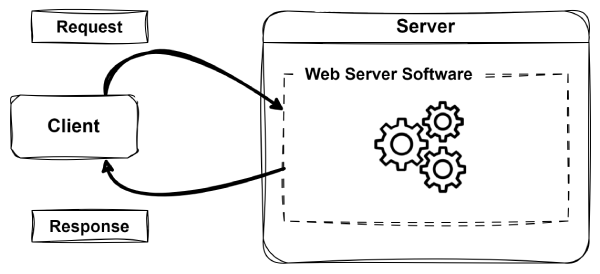
As you think about the request-response lifecycle diagram shown above, in the case of static files, when the client requests a static file, Express sends it directly to the client, no further processing is needed.
Create HTML files
Now create a src directory at the root of your project, and create a views subdirectory within it. Then, create the following three HTML files in the src/views directory. These files will serve as the content for your different pages:
home.html– The main home page for the site.organizations.html– A page to list the partner organizations.projects.html– A page to list all the service projects that are currently available.
When you create each file, use the code below for the content of these files, replacing the two [PAGE TITLE] placeholders with appropriate content for each page ("Home", "Organizations", or "Service Projects").:
<!DOCTYPE html>
<html lang="en">
<head>
    <meta charset="UTF-8">
    <meta name="viewport" content="width=device-width, initial-scale=1.0">
    <title>[PAGE TITLE]</title>
    <link rel="stylesheet" href="/css/main.css">
</head>
<body>
    <nav>
        <ul>
            <li><a href="/">Home</a></li>
            <li><a href="/organizations">Organizations</a></li>
            <li><a href="/projects">Projects</a></li>
        </ul>
    </nav>
    <main>
        <h1>[PAGE TITLE]</h1>
        <p>Coming Soon!</p>
    </main>
</body>
</html>
Notice how the CSS file is linked using a root-relative path (/css/main.css). This works because Express serves everything in your public directory from the root URL of your website.
Create route handlers for the html files
Because your html files are not in the public directory, Express will not serve them automatically. Instead, you need to create route handlers (or simply, routes, for short) that tell Express how to respond when someone visits specific URLs.
A route is a rule that says "when someone visits this URL, send them this content." It's like a receptionist who knows which office to direct visitors to.
Add these three routes to your server.js file after your middleware (make sure to delete the existing route for "/" that sends back a hardcoded message):
/**
  * Routes
  */
app.get('/', (req, res) => {
    res.sendFile(path.join(__dirname, 'src/views/home.html'));
});

app.get('/organizations', (req, res) => {
    res.sendFile(path.join(__dirname, 'src/views/organizations.html'));
});

app.get('/projects', (req, res) => {
    res.sendFile(path.join(__dirname, 'src/views/projects.html'));
});
Looking closely at the first route, you can understand how each of these work:
-
app.get('/', ...)tells Express "when someone visits the homepage (just the domain with no path), do the following" -
(req, res) => { ... }is the function that runs when someone visits that URL.reqcontains information about what they requested,reslets you send a response back -
res.sendFile(...)sends an HTML file to their browser -
path.join(__dirname, 'src/views/home.html')creates the complete path to your HTML file
So when you type http://127.0.0.1:3000/ in your browser, Express finds the first route, runs the function, and sends you the home.html file.
The same thing happens for the other routes:
-
http://127.0.0.1:3000/organizations→ sendsorganizations.html -
http://127.0.0.1:3000/projects→ sendsprojects.html
Notice that the URL is just /organizations not /organizations.html. The application will decide what to do with that request. Right now, it will find and send back the organizations.html file, but in the future, you will do something different to handle that route.
Why Not Just Put HTML Files in Public?
You might wonder why you can't just put your HTML files in the public directory like our CSS. The reason is control. Routes let you do things before sending the file, such as check if the user is logged in, customize the content, or redirect them somewhere else. Static files in public are sent directly with no opportunity for your code to intervene.
One Important Detail: You need to use path.join(__dirname, ...) instead of just writing 'src/views/home.html' because you need the complete, absolute path to the file. __dirname gives you the directory where server.js lives, and path.join() properly combines it with the rest of the path. This ensures the file is found no matter where someone runs your application.
Route Handling and the request-response lifecycle
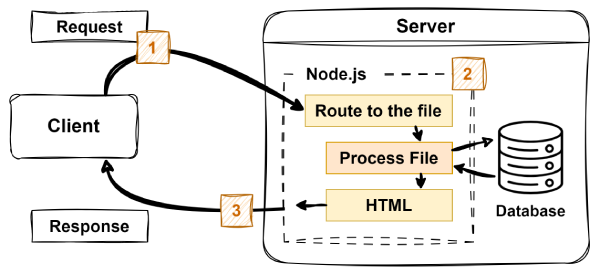
Referring back again to the more detailed steps of the request-response lifecycle shown above, routing is the first step the server takes as it handles the request. The routing step determines how to process the request. In the case of sending back html files as you are doing here, the work to process the request is quite simple, your code simply sends the html file back.
In future activities, you will add more processing, including database interaction, but the overall idea is the same—the route directs the request to the right place to produce html to send back to the client.
Optional Video Walkthrough
While the following video may be helpful to see the steps in action, make sure to walk through the written instructions directly because there may be important steps that are not covered in the video.
Direct link: Express and Routing
Test your app
Run your app by typing npm run dev in the terminal and visit the page in your browser. Make sure you can see each of the three pages (you should be able to click the links in the nav bar). Also, make sure the CSS file is rendering correctly (you should see a blue background).
- http://127.0.0.1:3000/ should display your home page
- http://127.0.0.1:3000/organizations should display your partner organizations page
- http://127.0.0.1:3000/projects should display your service projects page
- Verify that each page shows its correct content, the navigation works, and the CSS styles are applied.
If any of these things are not working, stop here and fix them before moving on to the next step.
Running a local server
Remember, in order for these links to work, you will need to have your local server running. The address 127.0.0.1 is the local IP address of your computer, so when you go to that link in the browser, it is looking for a web server running on you computer.
Add placeholder content to your html pages
Right now, each of your pages just says "Coming Soon!" You need to add some placeholder content to each page so that when you view them in the browser, they look more complete. Update each HTML file as follows:
Home page
On the home.html page, replace the Coming Soon! content with the following code:
<h2>Welcome to the CSE 340 Service Network!</h2>
<p>Our mission is to promote service across the world by connecting volunteers with service opportunities in their community.</p>

<img class="main-logo" src="images/cse340-service-network.png" alt="CSE 340 Service Network Logo">
This code snippet references an image, so you need to do the following to make the image work:
- Create an
imagessubdirectory inside yourpublicdirectory. - Download the following image file: CSE 340 Service Network Logo
- Save the image file into the
public/imagesdirectory, and make sure it is namedcse340-service-network.png.
Referencing Images in HTML
The image files are static files that will be served in the same way the CSS files are served. Also, just like with the CSS files, even though the file is in the public/images/ directory in your project, the relative path to your file is images/cse340-service-network.png (notice that public is not included in the html path to the file.
Partner Service Organizations page
On the organizations.html page, replace the Coming Soon! content with the following code:
<p>Here are a few of our partner organizations:</p>
<ul>
    <li><img src="/images/brightfuture-logo.png" alt="BrightFuture Builders logo"><strong>BrightFuture Builders</strong>: info@brightfuture.org</li>
    <li><img src="/images/greenharvest-logo.png" alt="GreenHarvest Growers logo"><strong>GreenHarvest Growers</strong>: contact@greenharvest.org</li>
    <li><img src="/images/unityserve-logo.png" alt="UnityServe Volunteers logo"><strong>UnityServe Volunteers</strong>: hello@unityserve.org</li>
</ul>
This code also references images, so you will need to download the following images and save them to your public/images directory as well.
Service Projects page
On the projects.html page, replace the Coming Soon! content with the following code:
<h2>Upcoming Service Projects</h2>
<ul>
    <li>Park Cleanup - Join us to clean up local parks and make them beautiful!</li>
    <li>Food Drive - Help collect and distribute food to those in need.</li>
    <li>Community Tutoring - Volunteer to tutor students in various subjects.</li>
</ul>
Test each page
After updating each page, refresh your browser and verify that you can see the new content including the images.
Final server.js content
At the end of this activity your server.js file should look as follows:
import express from 'express';
import { fileURLToPath } from 'url';
import path from 'path';

// Define the application environment
const NODE_ENV = process.env.NODE_ENV?.toLowerCase() || 'production';

// Define the port number the server will listen on
const PORT = process.env.PORT || 3000;

const __filename = fileURLToPath(import.meta.url);
const __dirname = path.dirname(__filename);

const app = express();

/**
  * Configure Express middleware
  */

// Serve static files from the public directory
app.use(express.static(path.join(__dirname, 'public')));

/**
  * Routes
  */
app.get('/', (req, res) => {
    res.sendFile(path.join(__dirname, 'src/views/home.html'));
});

app.get('/organizations', (req, res) => {
    res.sendFile(path.join(__dirname, 'src/views/organizations.html'));
});

app.get('/projects', (req, res) => {
    res.sendFile(path.join(__dirname, 'src/views/projects.html'));
});

app.listen(PORT, () => {
  console.log(`Server is running at http://127.0.0.1:${PORT}`);
  console.log(`Environment: ${NODE_ENV}`);
});
Key Concepts Summary
This assignment introduced several fundamental concepts:
- Static Files: Assets like CSS and images that are served directly to users without processing
- Middleware: Functions that process requests before they reach your routes
- Routing: Mapping URLs to specific responses or content
-
File Organization: Separating static assets (
public/) from server-rendered content (src/views/) -
Path Handling: Using
path.join()to create reliable file paths across different operating systems
Submission
After you have completed all the learning activities for this lesson, return to Canvas to submit a quiz.
Other Links:
- Return to: Week Overview | Course Home