
W01 Learning Activity: EJS Templates
Overview
In this activity, you will transform your static HTML website into a dynamic, maintainable application using the EJS templating engine. You'll learn why templating engines are essential for modern web development, how to create reusable components called partials, and how to organize your views for better maintainability.
Preparation Material
The Problem with Static HTML
Your current Express application works, but it has several limitations that become more visible as websites grow larger. Consider what happens when you want to make a simple change, like updating your navigation menu or changing the copyright year in your footer.
If you are using static HTML files, you would need to open every single HTML file and make the same change in each one. If you miss one file, and your site becomes inconsistent. If you add ten more pages, you would have ten more places where changes must be made perfectly. This approach does not scale and leads to maintenance nightmares.
Static HTML also cannot adapt to different situations. You cannot change content based on who's visiting, what time it is, or data from a database. Every visitor sees exactly the same thing, which severely limits what your application can do.
Templating engines solve these problems by separating your content from your layout, allowing you to create reusable components and generate dynamic content. This activity will show you the way to do this.
Understanding Templating Engines
A templating engine is a tool that combines templates (HTML with special syntax) and data to produce final HTML that gets sent to the browser. You provide a template with placeholders, and the engine fills in those placeholders with actual data.
EJS (Embedded JavaScript) is one of many templating engines available for Express. It allows you to embed JavaScript directly in your HTML using special tags, making it easy to create dynamic content without having to learn a different language.
This process works as follows: when someone visits your website, Express finds the appropriate EJS template, combines it with any data you provide, processes the special EJS syntax, and sends the resulting HTML to the user's browser. The user never sees the EJS code – only the final HTML.
Basic EJS Syntax
EJS template files look just like HTML files. But whenever you want to use EJS features you place code inside <% %> tags.
There are three main types of EJS tags you will use:
<%= %>: Outputs the value of a variable into the HTML (escaped for security)<%- %>: Outputs the value of a variable without escaping (useful for including HTML content)<% %>: Runs JavaScript code without outputting anything (useful for loops and conditionals)
For example, if you want to include the content of the variable title inside of an h1 tag, you would use this code:
<h1><%= content %></h1>Activity Instructions
Install and Configure EJS
Complete the following steps to set up EJS in your application.
-
Install the EJS templating engine using
npm, by running the following command in the terminal (in your project root directory):npm install ejs -
Configure Express to use EJS by adding these lines to your
server.jsfile. This code should go in your middleware configuration section just after your public static directory configuration:// Set EJS as the templating engine app.set('view engine', 'ejs'); // Tell Express where to find your templates app.set('views', path.join(__dirname, 'src/views'));The first line tells Express to use EJS for processing templates. The second line specifies where your template files are located. Express will automatically look for
.ejsfiles in this directory when you render views.
Configuration Order Matters
These configuration calls must come before your routes because Express needs to know about the templating engine before it tries to render any templates.
Create header and footer EJS partials
An EJS partial is a reusable template fragment that contains code you want to use in multiple places. Think of partials as the template equivalent of functions in programming – they let you write something once and use it everywhere.
For example, instead of copying your navigation menu into every page template, you create one navigation partial and include it wherever you need it. You only have to change the navigation in one place and it will be updated everywhere automatically.
Complete the following:
- Create a
partialsdirectory inside yoursrc/viewsdirectory. This is where you will store your reusable template components. - Create the header partial by creating a new file
src/views/partials/header.ejswith the following content:<!DOCTYPE html> <html lang="en"> <head> <meta charset="UTF-8"> <meta name="viewport" content="width=device-width, initial-scale=1.0"> <title><%= title %></title> <link rel="stylesheet" href="/css/main.css"> </head> <body> <nav> <ul> <li><a href="/">Home</a></li> <li><a href="/organizations">Organizations</a></li> <li><a href="/projects">Projects</a></li> </ul> </nav>Notice the
<%= title %>syntax. This is EJS telling the template engine to insert the value of a variable calledtitle. The<%= %>tags mean "output this value into the HTML." - Create the Footer partial by creating a new file
src/views/partials/footer.ejswith this content:<footer> <p>© <%= new Date().getFullYear() %> CSE 340 Service Network.</p> </footer> </body> </html>Notice that in this case, the footer makes a call to standard JavaScript to get the current year dynamically, with
<%= new Date().getFullYear() %>. It is important to realize that this JavaScript will run on the server (not in the browser). When the browser receives the HTML from the server it will see the year as a static value, and not even be aware that it was dynamically generated.
The header and footer partials provide the complete HTML structure that every page needs, but they leave room in between them for page-specific content.
Convert static pages to EJS templates
Now comes the transformation. You will convert your static HTML files into dynamic EJS templates that use the partials you just created.
Complete the following steps:
- Rename your
.htmlfiles to use the.ejsextension. You should rename each of the following files in yoursrc/viewsdirectory:home.html→home.ejsorganizations.html→organizations.ejsprojects.html→projects.ejs
- Replace the content of each
.ejsfile to use this simple structure: - Complete the updates for the organizations and projects pages in the same way. Don't forget to replace the
<h1> ... </h1>line in each template to use the new<%= title %>syntax.
<%- include('partials/header') %>
<main>
    <h1><%= title %></h1>
    <!-- Put your page-specific content here -->
</main>
<%- include('partials/footer') %>
The <%- include() %> syntax tells EJS to insert the contents of another template file. The %- syntax (notice the use of the - hyphen rather than the = equals sign) means you want to include this content directly, without escaping it or looking for variables. You would not want to do this with any content that may have come from a user or from the database, but since these are templates that you have written, you do not have to worry about escaping this content.
For example, your home.ejs should look as follows:
<%- include('partials/header') %>

<main>
    <h1><%= title %></h1>

    <h2>Welcome to the CSE 340 Service Network!</h2>
    <p>Our mission is to promote service across the world by connecting volunteers with service opportunities in their community.</p>

    <img class="main-logo" src="images/cse340-service-network.png" alt="CSE 340 Service Network Logo">

</main>

<%- include('partials/footer') %>
Notice that both the header partial and the main page use the <%= title %> replacement variable. When you render the page, you will make sure this variable is passed correctly, and then it will be filled in, in both places.
Don't Duplicate HTML Structure
When converting your files, remove all the HTML structure elements like <!DOCTYPE html>, <html>, <head>, <body>, etc. These are now handled by your header partial. Include only the unique content for each page within the <main> tags.
Update your routes to use templates
Next, update your routes to have Node render EJS templates instead of sending static HTML files. The key change is switching from res.sendFile() to res.render().
Update your routes in server.js to look like this:
/**
 * Routes
 */
app.get('/', async (req, res) => {
    const title = 'Home';
    res.render('home', { title });
});

app.get('/organizations', async (req, res) => {
    const title = 'Our Partner Organizations';
    res.render('organizations', { title });
});

app.get('/projects', async (req, res) => {
    const title = 'Service Projects';
    res.render('projects', { title });
});
Here is what has changed with this new version:
-
res.render()instead ofres.sendFile(): This tells Express to process an EJS template to use rather than send a static file. It will apply the EJS engine to generate the final HTML. -
Template name without extension: Notice that you are only supplying
homein theres.rendercall, rather than specifyinghome.ejsand you also do not supply the directory name. Express will automatically look forhome.ejsin your views directory. -
Data object: The second parameter, in this case
{ title }, provides data that the template can use. Here, you are passing an object with a propertytitlethat the template can access using the<%= title %>syntax. In the future, you will pass other data as well.
Understanding Data Passing
When you write res.render('home', { title }), you're passing an object with a title property to the template. Inside the EJS template, <%= title %> outputs the value of that property. The property names in your data object must match the variable names used in your templates.
Test your templated application
Your project structure should now look like this:
[project-root]
├── public/
│   ├── css/
│   │   └── main.css
│   └── images/
│       └── cse340-service-network.png
│       └── brightfuture-logo.png
│       └── greenharvest-logo.png
│       └── unityserve-logo.png
├── src/
│   └── views/
│       ├── partials/
│       │   ├── header.ejs
│       │   └── footer.ejs
│       ├── home.ejs
│       ├── organizations.ejs
│       └── projects.ejs
├── .env
└── server.js
Start your server with npm run dev and test each page:
- Verify that the page titles appear correctly in the browser tab
- Check that the navigation works on all pages
- Confirm that your CSS styles are still applied
- Make sure the footer appears on every page
Commit and push your code
Once you have verified that everything is working correctly, make sure to commit your changes and push them to your GitHub repository.
The request-response lifecycle
Using EJS templates is a great way to understand the request-response lifecycle.
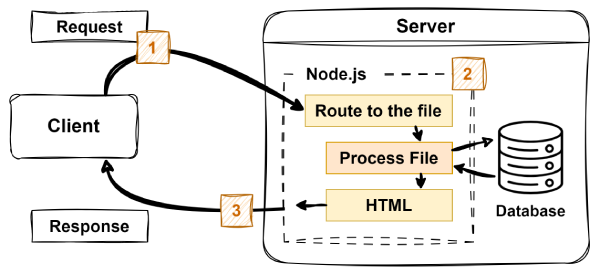
In this case, when the client makes a GET request to /organizations, the following Express route is matched:
app.get('/organizations', async (req, res) => {
    const title = 'Our Partner Organizations';
    res.render('organizations', { title });
});
The EJS view engine is then used to render the response. Express finds the organizations.ejs file in the src/views directory. The template sections for the header and footer are included and the variable for the title is also filled in. (No database interaction was needed yet.) The result is finished HTML that is then streamed back to the client to view in the browser.
The client does not see any of the EJS syntax or any of the processing that happened along the way. From their perspective, it could have just as easily been a static HTML file that was requested and streamed back.
This ability to generate HTML on demand and send it back to the client shows the power of server-side programming.
To see this for yourself, on your web page, view the page source in your browser (for example, right-click and select "View Page Source" or use the browser's developer tools). You will see that this looks like a standard HTML page without any EJS syntax.
Optional Video Walkthrough
While the following video may be helpful to see the steps in action, make sure to walk through the written instructions directly because there may be important steps that are not covered in the video.
Direct link: Express and Routing
Submission
After you have completed all the learning activities for this lesson, return to Canvas to submit a quiz.
Other Links:
- Return to: Week Overview | Course Home