
Introduction to Loom: Recording and Sharing Videos
Overview

Many courses require you to record your screen and include your camera profile as part of an assignment submission. This document explains how to do this using the Loom screen recording and video messaging tool.
Instructions
Install Loom
- Navigate to the Loom website at https://www.loom.com.
- Click on the Get Loom For Free button at the top.
- Sign up with your byupathway.edu email account.
Signing up with a verified .edu email address will open up Loom Pro features including extended recording lengths compared to the free starter plan.
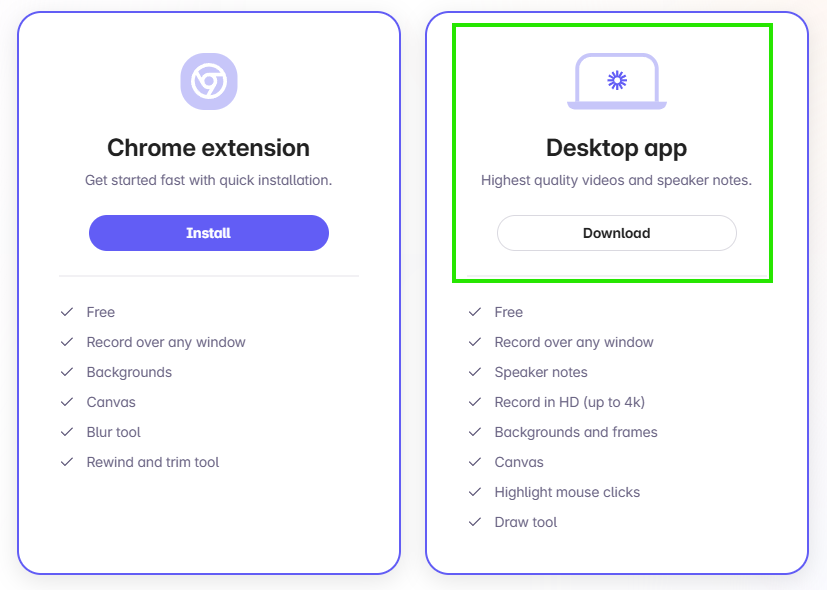
- Download and install the desktop application.
Installing the Chrome extension is a faster option and is OK for most recordings, but the desktop application produces higher-quality videos.
- Launch the installer application and follow the installation prompts.
- You may be prompted to sign in to the Loom web interface.
Recording a Video
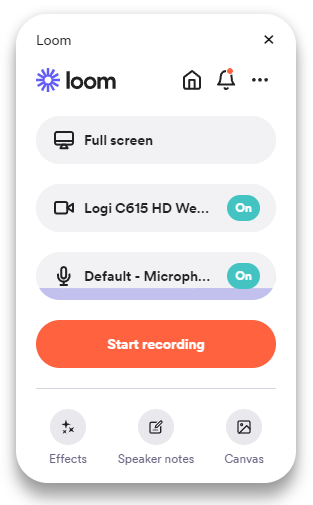
- Start the Loom application.
- The start recording screen's basic options allow you to select your screen, manage your camera, and manage
your microphone.
Additional options include camera effects, speaker notes, video enhancements (settings), and control preferences including keyboard shortcuts (settings).
- Click Start Recording when you have made your screen selection and set up and tested your camera and microphone.
- A countdown from three is provided and can be skipped.
- Your video will now capture your screen and camera.
- Click the Stop Recording button when you are finished.

The video recording control can be used to pause, restart, and delete the current recording.
- Your default browser will open to your Loom account and your video will process. Keep this window open while
it processes.
Do NOT close this browser window right away. The video may not finish processing if the window is closed. A play button usually appears when processing is done. Processing time depends on your computer's processing power and the length and quality of the video.
- Enter a title for the video, or keep the title that AI generates for your recording.
- The URL for the recording will automatically be copied to your clipboard, ready for you to paste.
Posting the Video's URL
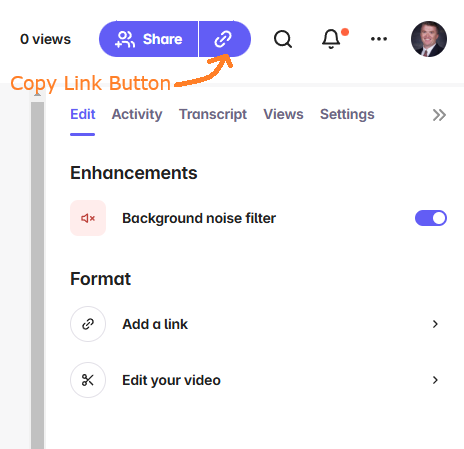
- All of your recorded videos are stored on your Loom account under My Library.
- You can edit your video including changing the transcript, adding links, splitting the video, and adding additional clips.
- When you are ready to share your video's URL, click on the Copy Link button.
- Paste the link wherever you need to share or submit it.