
Canvas Email Validation
Overview
For Microsoft Teams to work properly with your Canvas course, your preferred email in Canvas must be set to your @byupathway.edu email address and validated.
Configuring Your Canvas Email Address
- Log in to Canvas using your church account.
- Click Account, then Settings.
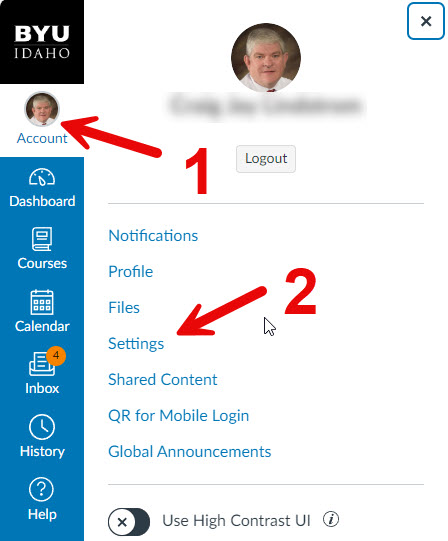
Account Settings - On the right side of your screen you should see "Ways to Contact". This email address should be your
@byupathway.edu email address. If it is not, change it. If you see an exclamation mark next to your
address, you will need to validate your email address. Click the exclamation mark icon.
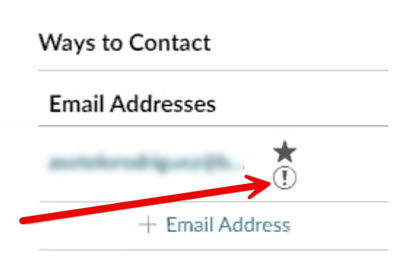
Email Address - You should see a validation confirmation window that looks like this. Click Ok, Thanks.
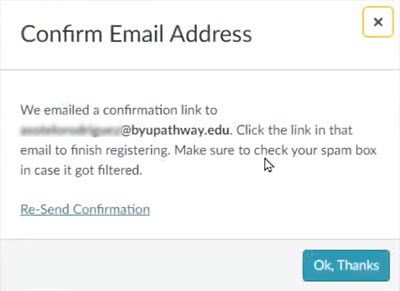
Validation Dialog - Canvas will send a confirmation email to the listed address. Open that email and click the
Click here to confirm this registration link. Check your spam folder if you do not see the
email. It will look like this:
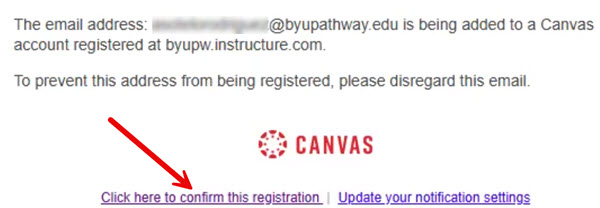
Email Confirmation Message - After your email is confirmed, the exclamation mark will no longer appear next to your email address.
- If you have multiple email addresses configured in Canvas, make sure your @byupathway.edu
email address is your preferred address (as indicated by the star icon next to the email address).
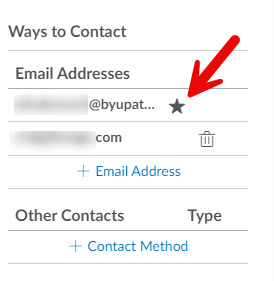
Multiple email address example - Your account is now configured properly.